
| User Role | Chain | Chain Venue |
| Brand Manager | ❌ | ✅ |
| Chain Manager | ❌ | ✅ |
| Company Manager | ❌ | ✅ |
| Local Manager | ❌ | ✅ |
To add Monitoring Recipient:
- Select the Venue you want to monitor
- Click on the Monitoring tab in the sidebar
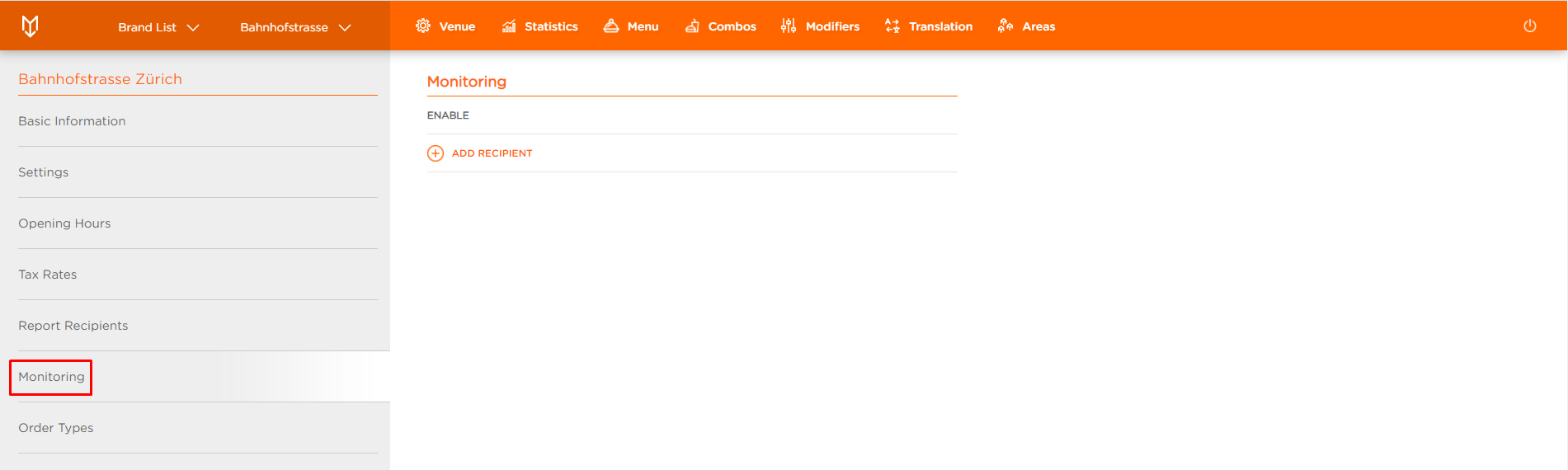
- New Monitoring section appears
- Click on ADD RECIPIENT in the Monitoring section
- New Add Recipient form appears
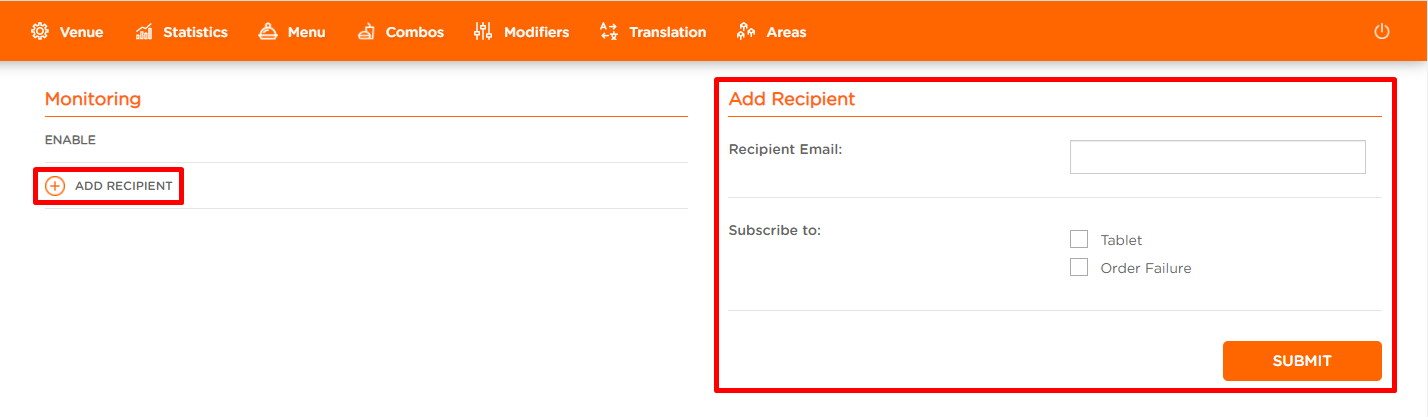
Recipient Email: Email of the recipient to which all the alerts are sent
Subscribe to: Check the boxes to select the component that triggers an alert email when experiencing connectivity issues
- For Plain integration and API POS integrations: Tablet and Order Failure
- For Printer integration: Printer, Tablet and Order Failure
- For Windows POS integration: Windows POS Service, Tablet, Order Failure
NOTE: Components depend on the Venue integration type. The two listed components are offered for Plain integration and API POS integration.
- Enter all the necessary data
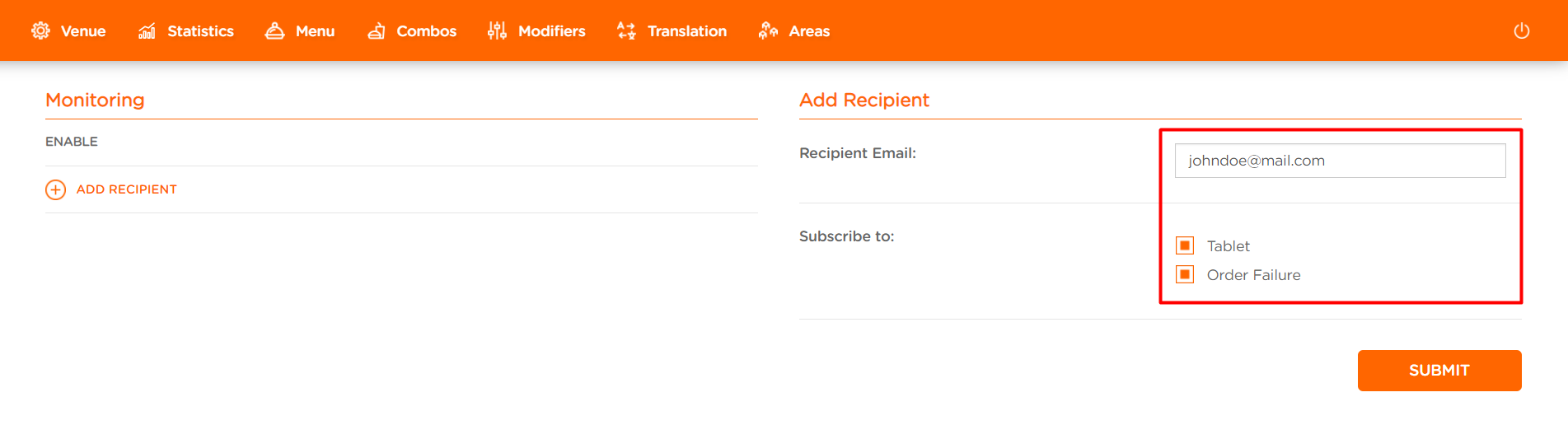
- Click SUBMIT to complete the action
To remove a recipient:
- Select the Venue you want to monitor
- Click on the Monitoring tab in the sidebar
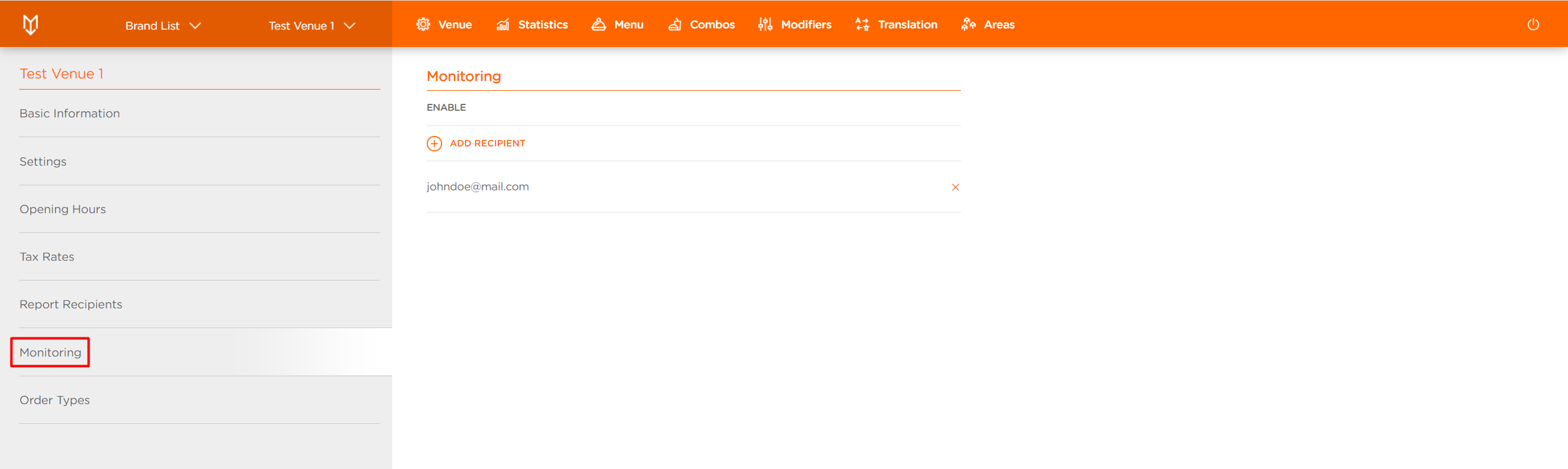
- Click on X next to the Recipient's email in the Monitoring field
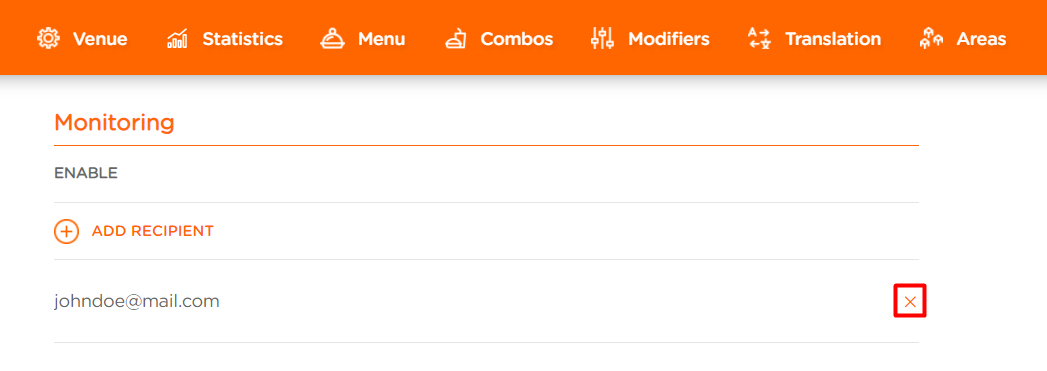
- You've successfully deleted a Monitoring Recipient
Comments
0 comments
Please sign in to leave a comment.